How an Etsy Canva Mockup Bundle Streamlines Your Creative Workflow
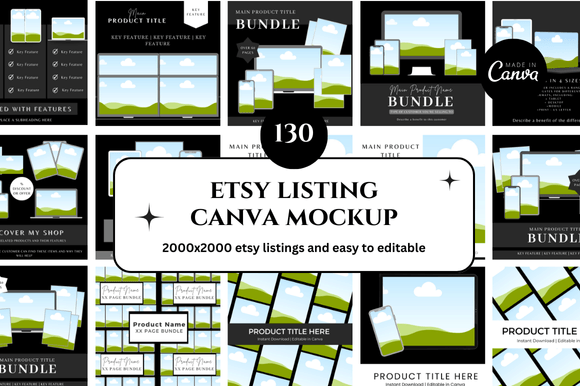
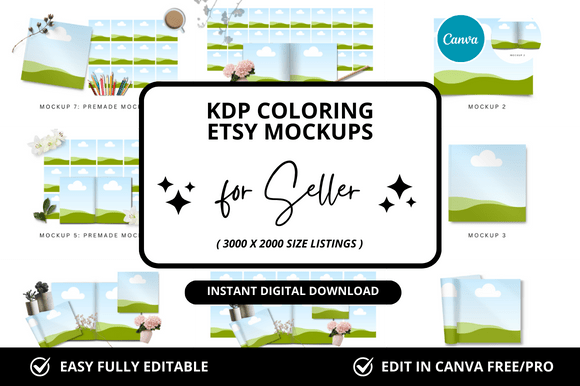
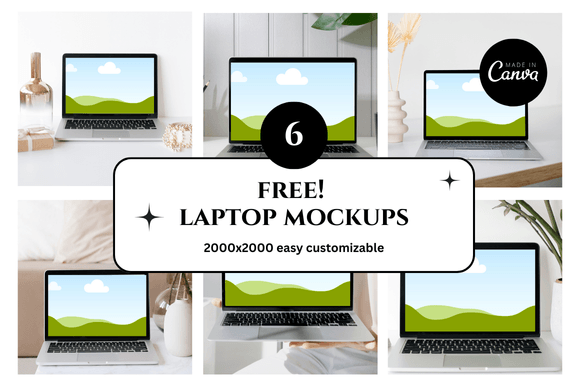
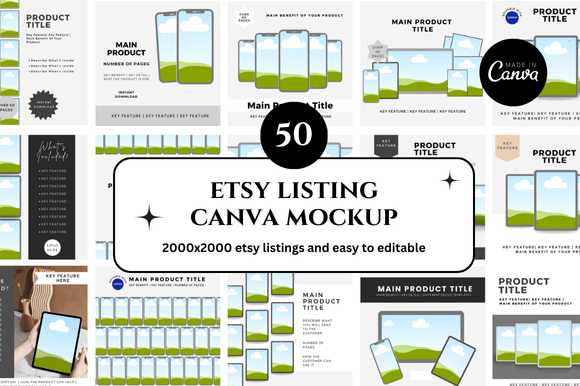
If you sell digital products on Etsy, sell mockups for Canva users, or create visual content for clients, you have likely faced the challenge of presenting your work in a realistic, professional context without spending hours on staging and photography. This is exactly where an Etsy Canva Mockup Bundle fits into your process. It is a curated set of templates—usually fully editable in Canva—that allows you to place your designs into lifelike settings such as framed wall art, phone screens, laptop displays, product packaging, or apparel. Instead of building each scene from scratch, you get a library of ready-to-use scenes that you can customize, repurpose, and deploy across multiple projects.
For creators, entrepreneurs, marketers, freelancers, and small business owners, this bundle is not just a collection of pretty images. It is a workflow accelerator that touches every phase of a project: planning, creation, presentation, and even client communication. Understanding how to integrate it into your daily routine can save you hours each week and improve the consistency of your visual output.
Where the Bundle Fits in Your Process
Think of an Etsy Canva Mockup Bundle as a foundational asset library rather than a one-time design. It slots into your workflow at multiple points:
- Before a project: Use it to brainstorm layout ideas, test color palettes, or present concepts to clients before committing to final production. The mockups give you a realistic preview of how a design will look in context.
- During creation: Place your actual design files (printable art, book covers, digital planners, logos) directly into the mockups. This helps you catch sizing, alignment, or spacing issues early.
- After completion: Generate portfolio images, social media posts, product listings, or marketing materials without extra staging. This is where the bundle delivers the most obvious time savings.
Because the templates are built in Canva, you do not need advanced design software. If you already use Canva for social graphics, presentations, or branding, the bundle extends that existing skill set. You are not learning a new tool—you are adding a new capability to a tool you already know.
How It Interacts with Other Tools and Platforms
An Etsy Canva Mockup Bundle does not exist in isolation. Its value depends on how well it connects with the rest of your toolkit:
- Canva itself: The templates are fully layered and editable. You can change backgrounds, swap shadows, adjust perspectives, and replace placeholder images with your own designs. Most bundles use smart objects or linked layers, so one click updates the design across multiple scenes.
- Etsy listings: If you sell on Etsy, mockups are essential for creating attractive product photos. This bundle lets you generate consistent, branded images for every listing without reshooting.
- Social media schedulers: Export mockup images from Canva and upload them to tools like Later, Buffer, or Hootsuite for scheduled posts. The consistency of the mockups helps maintain a cohesive feed.
- Client presentation tools: Drop mockup images into proposals, PDFs, or Google Slides. Clients see a polished preview, which reduces back-and-forth revisions.
- Print-on-demand or fulfillment services: Use the mockups to show customers what a product will look like before they order, reducing returns and increasing trust.
The bundle becomes a bridge between your design file and the final presentation. Without it, you would need to take photos, composite images manually, or hire someone to do product photography. With it, you complete that step in a few minutes inside Canva.
Practical Implementation Tips
Getting the most out of an Etsy Canva Mockup Bundle requires a little preparation. Here are actionable steps to integrate it smoothly into your routine:
1. Organize Your Bundles by Use Case
Most bundles include dozens—sometimes hundreds—of scenes. Do not treat them as a single folder. Instead, create subfolders in your Canva account or on your local drive:
- Digital products: Phone mockups, tablet mockups, laptop mockups.
- Print products: Framed wall art, posters, canvas prints, apparel.
- Branding assets: Business card mockups, stationery sets, logo presentations.
- Social media: Instagram posts, stories, YouTube thumbnails.
This way, when you need a specific type of mockup, you go directly to the right folder instead of scrolling through hundreds of files.
2. Set Up a Master Template File
Instead of opening each mockup individually, import all the scenes from the bundle into a single Canva project. Duplicate pages for each mockup scene. Then, create a master layer for your design. If the bundle uses smart objects, you can place your design once and it updates across all pages. This is especially useful when you have a product that needs to be shown in multiple environments—a single file produces all the images at once.
3. Customize Colors and Lighting
Most bundles include matching backgrounds and environmental elements. Adjust the color palette to match your brand. If the mockup shows a room, change the wall color, rug, or decor to something that complements your brand identity. This makes your images feel cohesive even though they come from different scenes. Consistency in lighting and color temperature also helps your Etsy shop or portfolio look professional.
4. Resize for Different Platforms
Canva allows you to resize projects easily. After you have a mockup image ready, use the Resize feature to create versions for Etsy listings (usually square or vertical), Instagram (square or portrait), Pinterest (vertical), and your website (landscape). The bundle gives you the original scene, but you control the final dimensions. Always keep a master file at the highest resolution and downscale for each platform.
5. Use Mockups for Client Approval
If you are a freelancer or designer, send a mockup to the client before finalizing the design. It is easier for non-designers to approve a design when they see it in context. A logo on a plain white background might look fine, but seeing it on a storefront sign, a business card, and a website header helps the client understand how the brand will appear in the real world. This reduces revisions and speeds up the approval process.
Workflow Examples
To make this more concrete, here are two typical scenarios where an Etsy Canva Mockup Bundle changes the pace of work.
Example A: Selling Print-on-Demand Wall Art on Etsy
Before: You design a printable art file. You take a photo of it on your wall, but the lighting is off, the frame is crooked, and the background is cluttered. You spend 20 minutes editing the photo, and the result still looks amateur. For a second design, you repeat the entire process.
With the bundle: You open a mockup scene with a beautifully lit room, a high-quality frame, and natural shadows. You drag your design file into the smart layer. The mockup automatically adjusts shadows and highlights. In two minutes, you have a professional listing image. You repeat this for five other mockup scenes to create variety. Total time: 10 minutes for six listing images. You also have matching images for social media and Pinterest.
Example B: Freelance Brand Designer Presenting to a Client
Before: You create a logo in vector software, save a few file formats, and send a PDF to the client. The client struggles to imagine the logo on a business card or a storefront. They ask for revisions based on abstract feedback.
With the bundle: You import the logo into a mockup bundle that includes a business card, a store sign, a website header, and a product tag. You present a single PDF or Canva link showing the logo in multiple real-world contexts. The client immediately sees the weight, proportions, and impact of the design. Approval comes faster, and the revisions are more targeted.
Factors for Long-Term Use
An Etsy Canva Mockup Bundle is not a disposable asset. With proper management, it can serve you for months or even years. Here are factors to consider for maximizing its lifespan:
- Compatibility: Check that the bundle is compatible with the version of Canva you use (free vs. Canva Pro). Some bundles require Pro features like transparent backgrounds or premium elements. If you are on the free plan, look for bundles that specify free-compatible.
- File format: Most bundles are delivered as editable Canva templates (links or files). Make sure you have a Canva account and that you can access the template. Some creators also include instructions for converting to other formats if needed.
- Updating trends: Mockup scenes that are too trendy (neon lights, specific interior styles) may feel dated in a few years. Choose bundles with timeless, clean environments, or invest in multiple bundles that cover different aesthetics so you can rotate them.
- Backup and version control: Save your customized mockup files in a cloud storage service like Google Drive or Dropbox. If you reorganize your Canva account or if a template link expires, you still have the original file. Also, keep a backup of your master template before making major changes.
- Quality control: Not all bundles are created equally. Look for bundles with high-resolution images, realistic lighting, and clean clipping masks. Read reviews or check the creator’s portfolio before purchasing. A good bundle will have well-constructed layers that do not break when you resize or edit them.
Usability and Organization
Good organization is the difference between a bundle that saves time and a bundle that causes frustration. Here is a simple system:
- Rename the files immediately after downloading. Use a consistent naming convention like BundleName_Scene_Format (e.g., UrbanLoft_Laptop_Landscape).
- Create a master Canva project where you import all scenes. Use page numbers or labels to find specific scenes quickly.
- Use Canva’s folder feature to group bundles by category or client. If you work with multiple brands, keep each brand’s mockups in a separate folder.
- Tag frequently used mockups as favorites in Canva so they appear in your quick-access toolbar.
When you need a mockup, you should be able to find it in under 20 seconds. If it takes longer, your organization system needs adjustment.
Final Observations
An Etsy Canva Mockup Bundle is a practical tool for anyone who needs to present designs in a realistic context without the overhead of traditional photography. It is not a magic solution—you still need good design skills and a clear brand vision. But it removes the friction of staging, lighting, and editing, letting you focus on what matters: the design itself.
For entrepreneurs and small business owners, the bundle helps you produce professional-looking marketing materials quickly, which is critical when you are juggling multiple roles. For freelancers and agencies, it streamlines client presentations and reduces the revision cycle. For educators and bloggers, it creates polished visuals for tutorials and courses without a big time investment.
Whether you use it before a project to test ideas, during creation to catch issues, or after completion to generate assets, the bundle fits naturally into a workflow that values efficiency, consistency, and quality. The key is to treat it as a system, not just a set of files. Organize it, customize it, and reuse it across projects. Over time, it becomes a core part of your creative toolkit—one that saves you time on every project you touch.