Bookmark Canva Mockup: Showcase Your Designs with Realistic Previews
When you design a bookmark, the final printed result can feel like a surprise. Colors shift slightly. Layouts that looked balanced on screen may feel cramped in hand. Margins that seemed generous suddenly appear tight. This gap between screen and print is where a bookmark Canva mockup becomes genuinely useful. Instead of guessing how your design will translate to a physical object, you can preview it in a realistic setting, adjust details, and move forward with confidence.
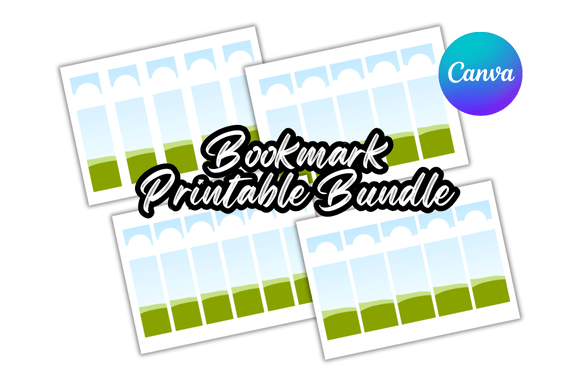
A bookmark Canva mockup is essentially a template or scene that places your flat design onto a three-dimensional representation of a finished bookmark. It might show the bookmark resting on an open book, tucked into a page, stacked with others, or held between fingers. These mockups help you see scale, texture, and context before you commit to printing. For anyone who creates bookmarks regularly or even occasionally, this kind of preview changes the workflow from guesswork to informed decision-making.
Why a Realistic Preview Matters for Your Bookmark Designs
Seeing your design in a mockup does more than just make it look attractive. It reveals how elements interact with the physical form. A bookmark is small, usually around two by six inches or similar proportions. Text that seemed readable on a full monitor may shrink to the point of strain. Graphics that felt balanced might crowd the edges. A bookmark Canva mockup brings these issues into focus while you can still edit the file, not after you receive a stack of printed pieces.
This matters particularly if you are presenting your work to someone else. Authors showing a bookmark design to a publisher, educators preparing classroom materials, or small business owners creating promotional giveaways all benefit from a mockup that communicates the final look without requiring a physical sample. The person reviewing the design sees it in context, which often leads to faster approvals and fewer rounds of revision.
Mockups also help you test variations. You can place two color options side by side in the same scene, compare different fonts, or try a landscape versus portrait orientation. Instead of imagining how each version would look printed, you see them both in a realistic setting. This makes the choice clearer and reduces the chance of regret after printing.
Saving Time and Reducing Rework
One of the most practical outcomes of using a bookmark Canva mockup is the time it saves. If you have ever ordered printed materials and felt disappointed with the result, you know how costly rework can be. Reprinting involves not just money but also the delay of receiving new copies, the frustration of explaining changes to a printer, and the disruption to your schedule. A mockup helps catch problems before any of that happens.
For example, a blogger designing bookmarks to give away at a conference can preview the design in a mockup and notice that the website URL is too small to read at actual size. Adjusting that in Canva takes a minute. Without the mockup, that flaw might only become obvious when the bookmarks arrive, too late for the event. Similarly, a teacher creating reading trackers for students can check that the lines for names or dates are large enough to write on. These small adjustments, made early, prevent much larger frustrations later.
Using a mockup also speeds up the design iteration cycle. Instead of designing, printing a test, evaluating, and redesigning, you can complete several rounds of refinement entirely within Canva. The mockup becomes a virtual proof that substitutes for a physical sample in most cases. For those who work remotely or need to share designs with collaborators in different locations, this is especially valuable.
Strengthening Communication with Clients and Stakeholders
If you design bookmarks for others, whether as a freelancer, an in-house marketer, or a volunteer for an organization, you know that words alone rarely convey a visual idea. Describing how a design will look as a physical object often leads to misunderstandings. A bookmark Canva mockup bridges that gap. Instead of saying the design will look elegant with gold foil on dark paper, you can show a mockup that approximates that effect. The client sees the same scene you see, and feedback becomes more precise and useful.
This clarity helps in several ways. First, it reduces the number of revision cycles because both parties are looking at the same visual information. Second, it builds trust. When a client sees that you have taken the time to present the design in a realistic context, they perceive your work as more professional and thorough. Third, it makes the approval process smoother. Stakeholders who might hesitate over a flat digital file often feel confident approving a mockup because they can visualize the end product.
For marketers and small business owners creating branded bookmarks, this same clarity applies internally. If you need approval from a partner or team member, a mockup helps them understand why certain design choices matter. The bookmark stops being an abstract graphic and becomes a tangible asset that supports your brand identity.
Supporting Creativity Through Contextual Testing
Creativity thrives when you can experiment without risk. A bookmark Canva mockup creates a safe space for trying bold ideas. You can test unusual color combinations, playful typography, or unconventional layouts and see how they read in a realistic setting. If something does not work, you simply adjust the design and generate a new mockup. No materials wasted, no time lost waiting for prints.
This freedom to experiment often leads to stronger final designs. For instance, a hobbyist creating bookmarks for a personal project might try a dark background with light text, something they would hesitate to order without seeing first. The mockup shows that the contrast works well at bookmark scale, and they proceed with confidence. Another creator might test a design with a photo background and discover that the image competes with the text. They can then adjust opacity, move the text, or choose a different image before printing.
Educators and librarians who design bookmarks to promote reading programs also benefit from this experimentation. They can try different themes and see which one looks most appealing at the actual size. The mockup helps them make creative decisions based on visual evidence rather than guesswork.
Who Benefits Most From a Bookmark Canva Mockup
While any bookmark designer can find value in a mockup, certain groups gain more than others. Authors and self-publishers often use bookmarks as promotional tools at book signings and events. A professional-looking bookmark can leave a lasting impression on potential readers. Using a mockup ensures the design looks polished and that elements like the book title, author name, and website are clear and legible at a glance.
Small business owners who distribute bookmarks with product information, discount codes, or QR codes need those elements to function correctly. A mockup lets them verify that a QR code scans at the intended size and that the discount code is easy to read. This practical check can prevent customer frustration and lost sales.
Freelance designers and creative agencies use mockups to present work to clients in a way that feels finished and professional. A bookmark Canva mockup elevates the presentation from a simple file attachment to a visual proposal that communicates effort and attention to detail. This can make the difference between winning a project or being passed over.
Educators and librarians who create bookmarks for classroom use or library promotions need designs that are functional first and attractive second. A mockup helps them confirm that the bookmark serves its purpose, whether that is tracking reading progress, listing due dates, or promoting an upcoming event.
Hobbyists and crafters who design bookmarks for personal enjoyment or gifts benefit from the low-risk experimentation that mockups enable. They can explore their creativity without worrying about wasted materials or disappointing results.
Limitations and Practical Considerations
While a bookmark Canva mockup is a powerful tool, it is not a perfect substitute for a physical proof. The mockup simulates the design on a screen, which means color accuracy depends on your monitor calibration and the settings in Canva. If your project requires precise color matching, such as a brand color that must be exact, a physical proof from your printer remains the gold standard.
Also, mockups may not fully represent the texture of paper, the effect of specialty finishes like foil or embossing, or the way light interacts with the material. If these details matter for your project, consider supplementing the mockup with a small sample run from a local print shop. The mockup still helps you refine the layout and composition before you invest in that sample.
Another consideration is the quality of the mockup template itself. Some bookmark Canva mockup templates are more realistic than others. Look for templates that use high-resolution images, proper lighting, and accurate perspective. A poorly made mockup can mislead you about how the design will actually look. Take time to find templates that match your needs, or create your own by photographing a real bookmark and replacing the design in Canva.
Finally, remember that a mockup is a representation, not a guarantee. Use it as a guide for making design decisions, but always verify critical details with your printer before placing a large order. Ask about bleed requirements, minimum font sizes, and color profiles. The mockup helps you arrive at those conversations with a stronger design, but the printer's specifications ultimately determine what works.
Practical Recommendations for Getting the Most From Your Mockup
To make the best use of a bookmark Canva mockup, start with a clean, well-organized design file. Ensure your bookmark canvas is set to the correct dimensions and that any bleed area is included. Export the design at high resolution before placing it into the mockup template. This preserves the quality of your graphics and text.
Test multiple angles if the template offers them. A flat lay mockup shows the full design, while a perspective shot shows how the bookmark looks in use. Both views provide different information, and together they give you a complete picture. If you plan to use the mockup for marketing, choose the angle that best highlights the design's strengths.
Share the mockup with someone whose opinion you trust before finalizing the design. A fresh pair of eyes may notice something you missed, like a font that reads differently at small scale or a color that clashes in context. The mockup makes it easy for them to give specific feedback because they are looking at the same realistic scene you are.
Keep a library of mockup templates for different styles and purposes. A simple bookmark on a neutral background works well for client presentations, while a lifestyle scene with books and reading accessories suits social media or marketing materials. Having options lets you choose the right context for each audience.
How a Bookmark Canva Mockup Fits Into a Broader Design Workflow
A mockup is not a standalone tool but part of a larger process. It fits naturally between the design phase and the production phase. After you finish the bookmark layout in Canva, you place it into the mockup to evaluate and refine. Once you are satisfied, you export the final design for printing and use the mockup image for promotion, portfolios, or client presentations.
This workflow saves time and improves outcomes because it builds evaluation into the design process rather than treating it as an afterthought. You make decisions with more information, and those decisions lead to bookmarks that look and function as intended. Over time, using mockups becomes a habit that raises the quality of everything you produce.
For professionals, this habit signals competence. Clients and colleagues notice when your designs consistently translate well to print. For hobbyists and small creators, it removes the guesswork that often leads to dissatisfaction. Either way, the result is the same: bookmarks that work exactly as you imagined.